Getting Started
Complete your first subtitle workflow
TitleFlow fits into your existing Final Cut Pro workflow instead of replacing it. It automates repetitive subtitle-title production while you continue editing in the environment you already know.
Complete the first three steps only once for each subtitle style. Extracted templates can be reused across subtitle files and future projects.
- 1
Create an empty project in Final Cut Pro, add the title you want, and adjust its parameters.
- 2
Export the project as FCPXML or FCPXMLD.
- 3
Import the document into TitleFlow to extract subtitle templates.
Your regular workflow
- 4
Import SRT or WebVTT subtitle files.
- 5
Preprocess one file, or use Preprocess All for a batch.
- 6
Assign subtitle templates and settings to speakers.
- 7
Export the projects in the workspace as FCPXML.
- 8
Import the generated FCPXML back into Final Cut Pro.
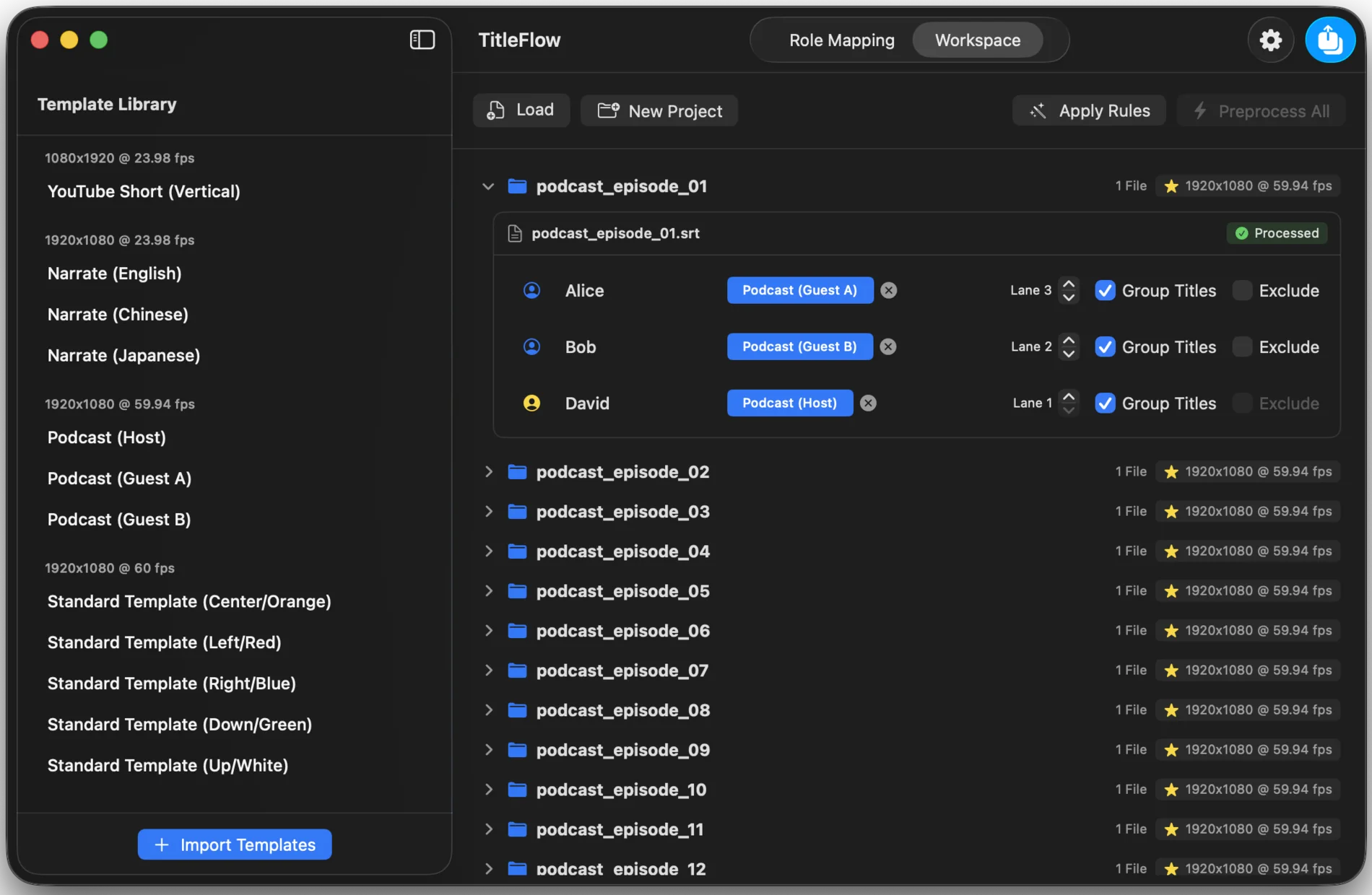
Understanding Templates
One Motion title, many reusable templates
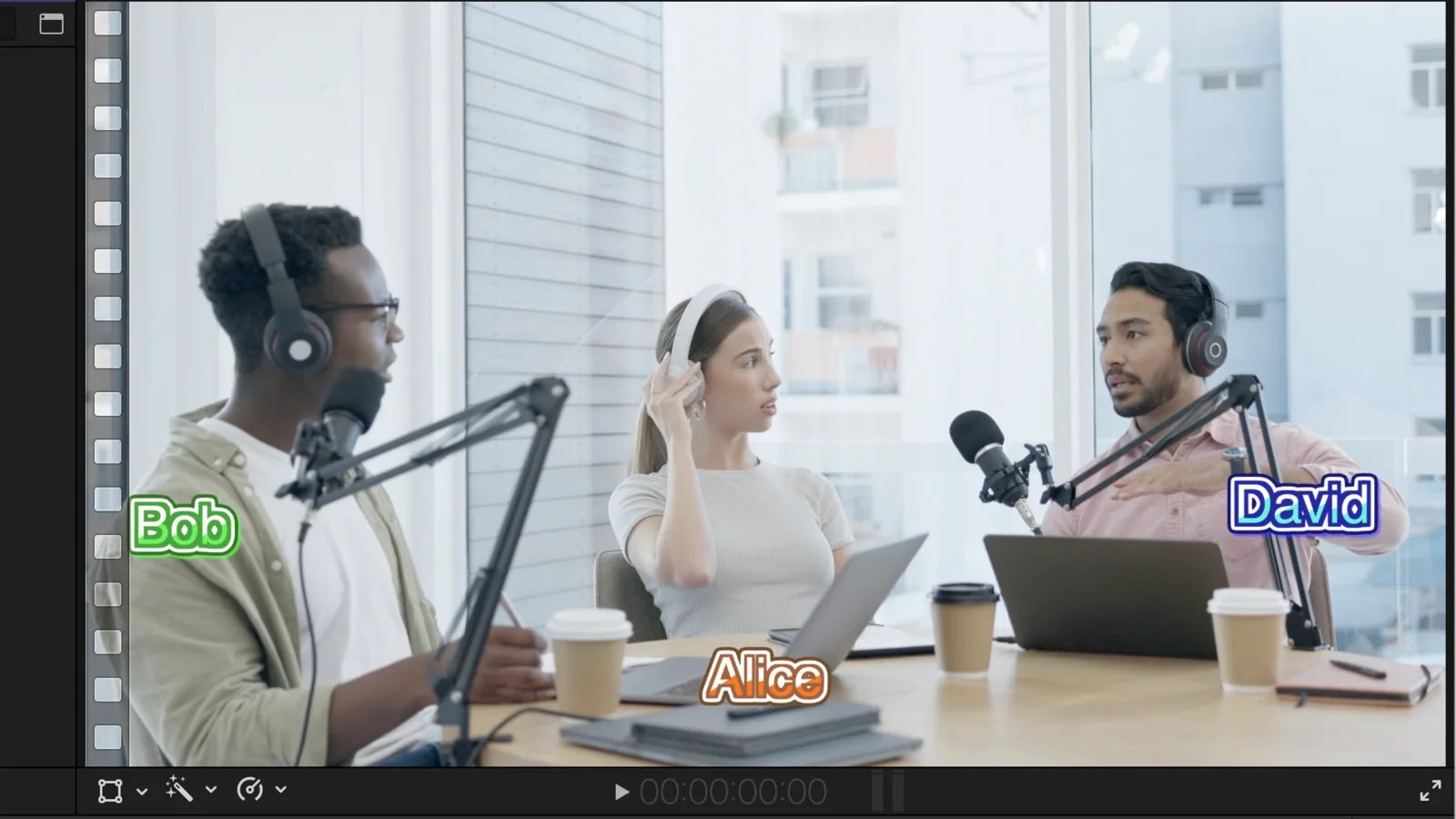
TitleFlow reads the FCPXML or FCPXMLD you explicitly import and stores its Motion template reference together with supported visual parameters such as font, position, color, and text style. Different settings can turn one Motion title into multiple independent TitleFlow Subtitle Templates.
Organizing and moving templates
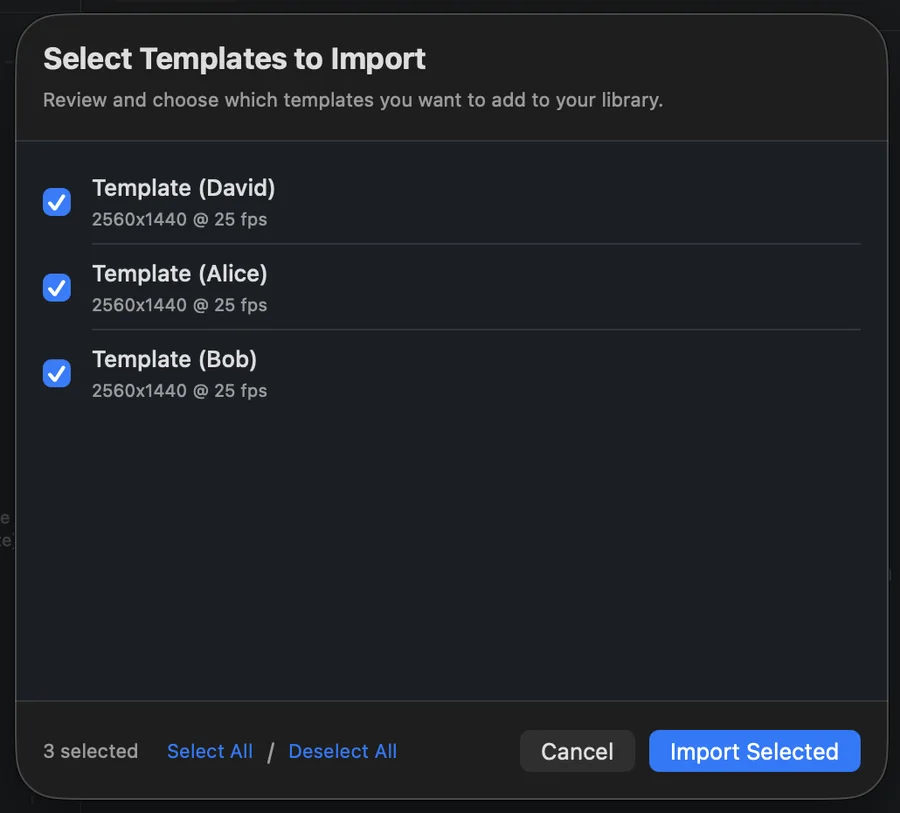
- Templates can be renamed and are organized by resolution and frame rate.
- Templates can be exported as standalone .tftemplate files.
- Name collisions are numbered automatically; an identical template is rejected as a duplicate.
A .tftemplate stores only information found in the FCPXML; it does not include the original .moti. On another Mac, the same Motion template must be installed with the same name and path. TitleFlow does not read, copy, or modify Motion template resources inside Final Cut Pro.
Role Mapping Explained
Configure once, apply to every matching speaker
Role Mapping separates speaker identity from subtitle appearance. Prepare a Subtitle Template, Lane, and Group Titles behavior for recurring speakers; unmatched speakers use Default.
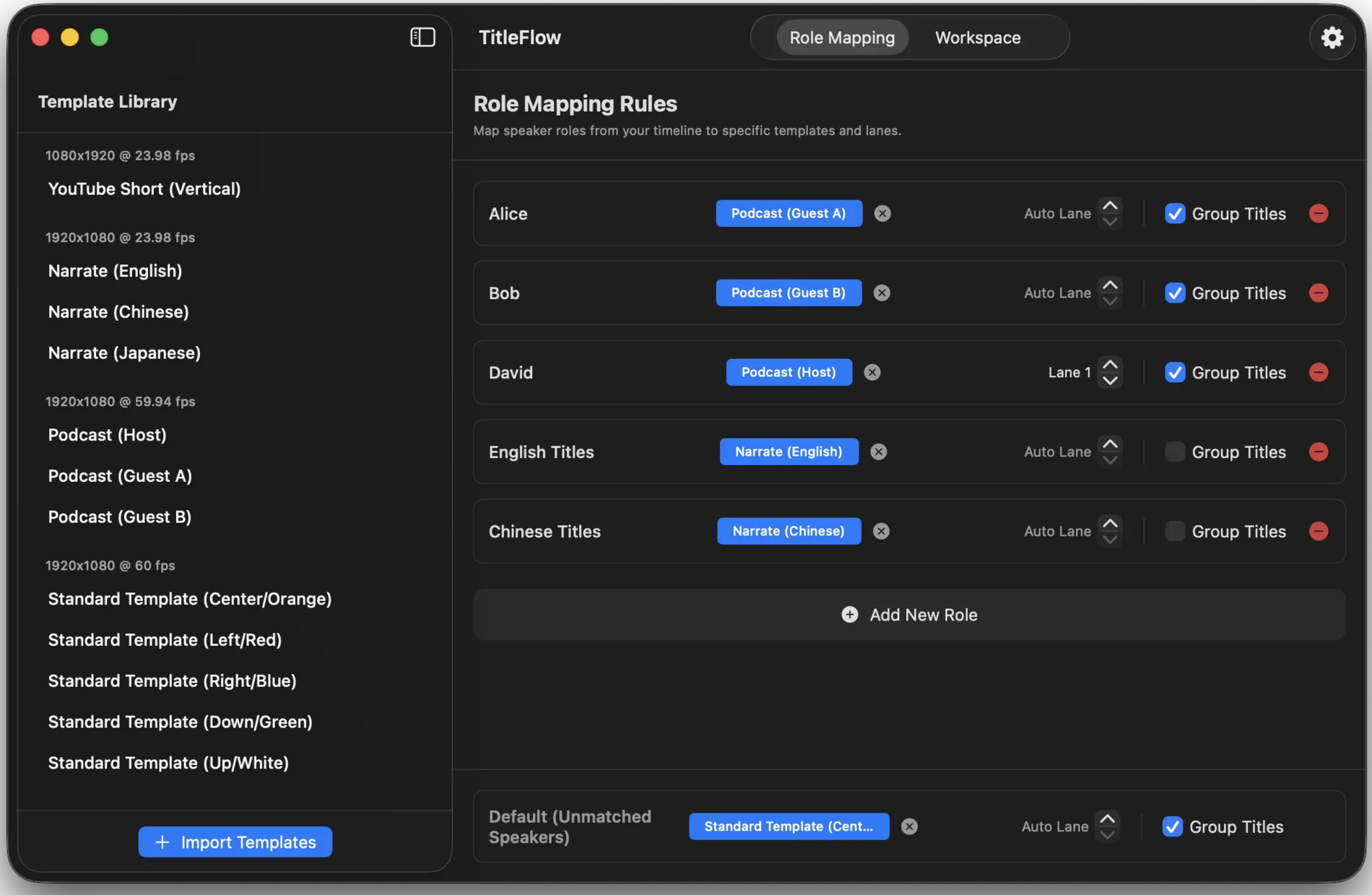
Speaker Detection and fallback
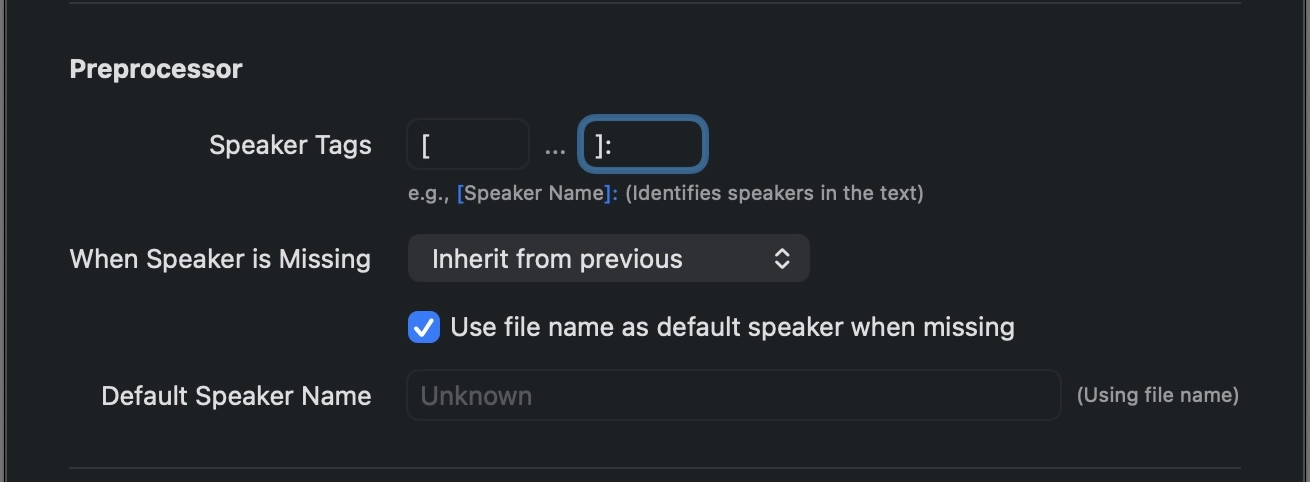
During Preprocess, TitleFlow detects speakers using the label format selected in Settings. The format is configurable, but must include both a prefix and suffix, such as [Speaker]:, <Speaker>, or (Speaker).
[Alice]: Hello![Bob]: Hi!When no label is detected, TitleFlow can inherit the previous speaker or use the subtitle filename or a custom name as the fallback speaker. Fallback determines who the speaker is; Role Mapping Default determines which settings to use when no rule matches.
Master Speaker
Each project has one Master Speaker. Its assigned template determines the project environment, including resolution, frame rate, and other template-dependent settings.
Final Cut Pro allows title templates with different specifications in one project, but mixing resolutions or frame rates may produce unexpected results. TitleFlow does not resize, convert, or adjust title templates. Make sure other speakers' templates suit the project environment determined by the Master Speaker.
Working with Import Folders
Organize projects before editing
TitleFlow can mix entire folders with individual SRT or WebVTT subtitle files in the same workspace. Unsupported files are ignored.
Folder import
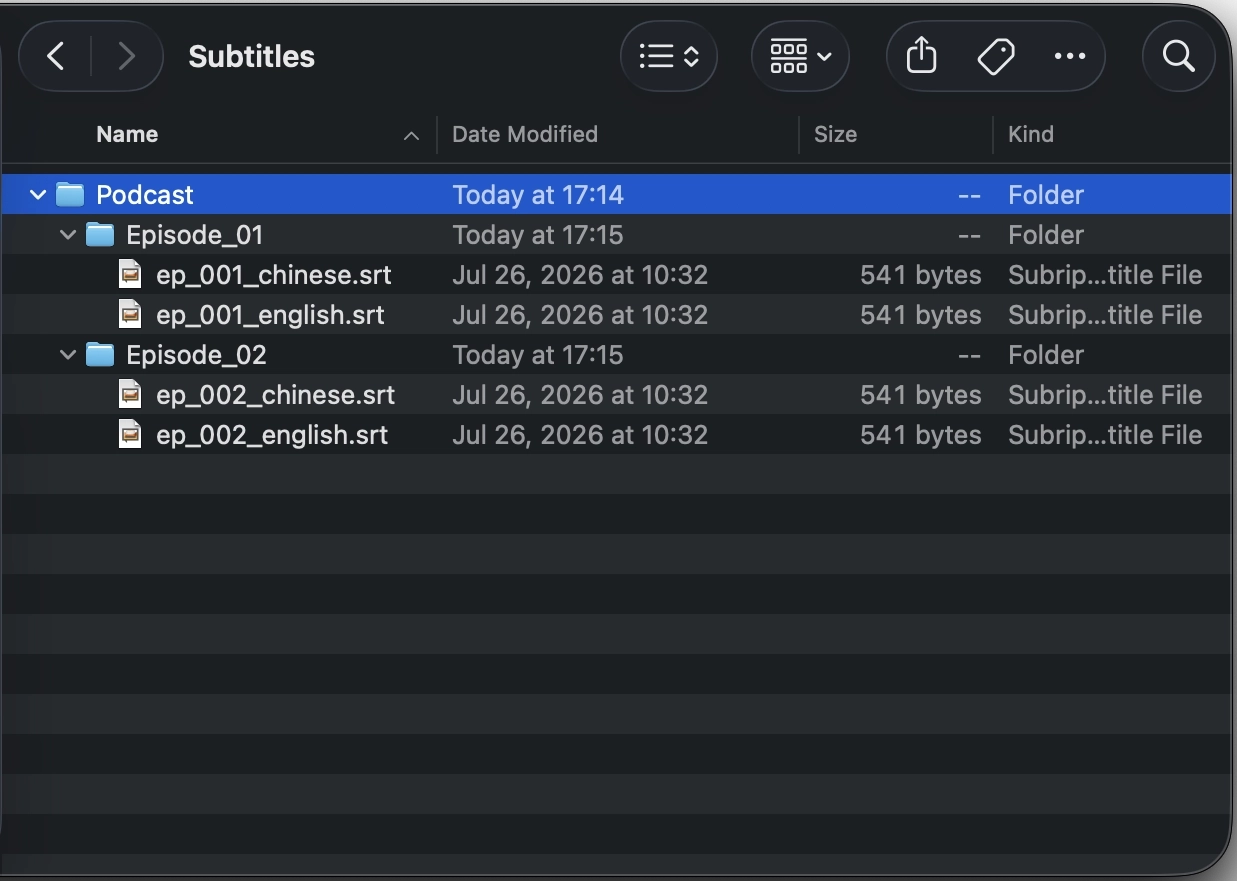
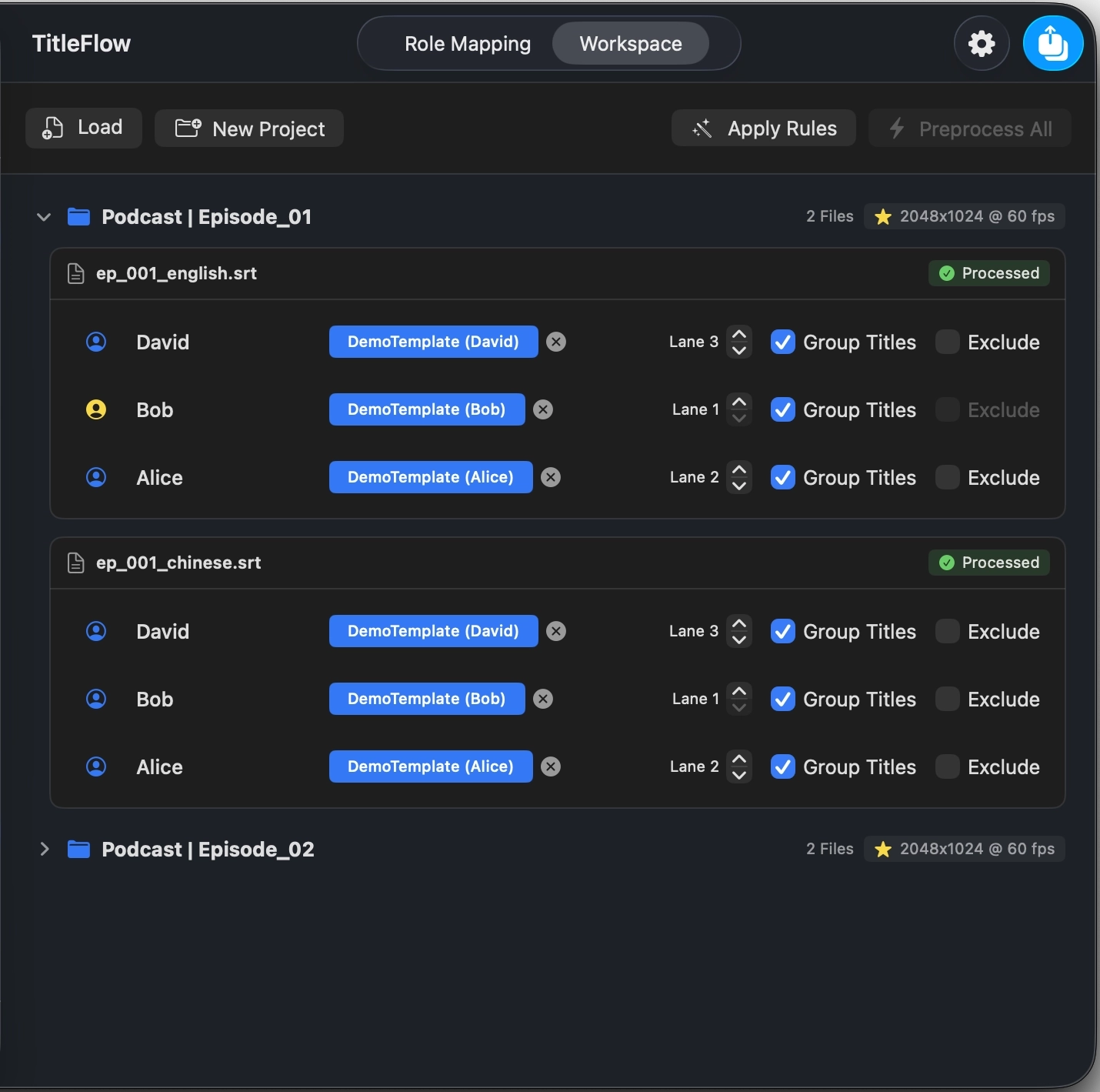
Each folder becomes a project. Subfolders are flattened into separate projects and named using their path and folder name.
TitleFlow separates path and folder names with “|”, avoiding the unsupported “/” character in Final Cut Pro project names.
Individual file import
When importing individual subtitle files, each file can become its own project or multiple files can be combined into one. The same file cannot appear twice within one project, but it can be used in different projects.
Fine-tuning Subtitle Timing
Make subtitles appear and disappear more naturally
Lead-in and Tail-out apply to every project in the current workspace and remain saved in Settings. Optimization is applied only during export and does not modify the source subtitle files.
Show the subtitle 0.15 seconds earlier.
Keep the subtitle visible 0.10 seconds longer.
Both sliders range from −0.5 to +1.0 seconds, and values can also be entered directly. TitleFlow applies Lead-in and Tail-out first, then resolves other timing issues. Seconds are converted to frames according to the project frame rate only during export.

Automatic safeguards
- Remove gaps that are too short between adjacent subtitles.
- Protect subtitles from becoming too short.
- Prioritize preserving every subtitle's complete content.
- When timing is too crowded, adjacent subtitles may be merged to prevent missing content.